MJOC2 Academy

Master the art of mobile 3D animation with these guides.

Tutorial 1 Image

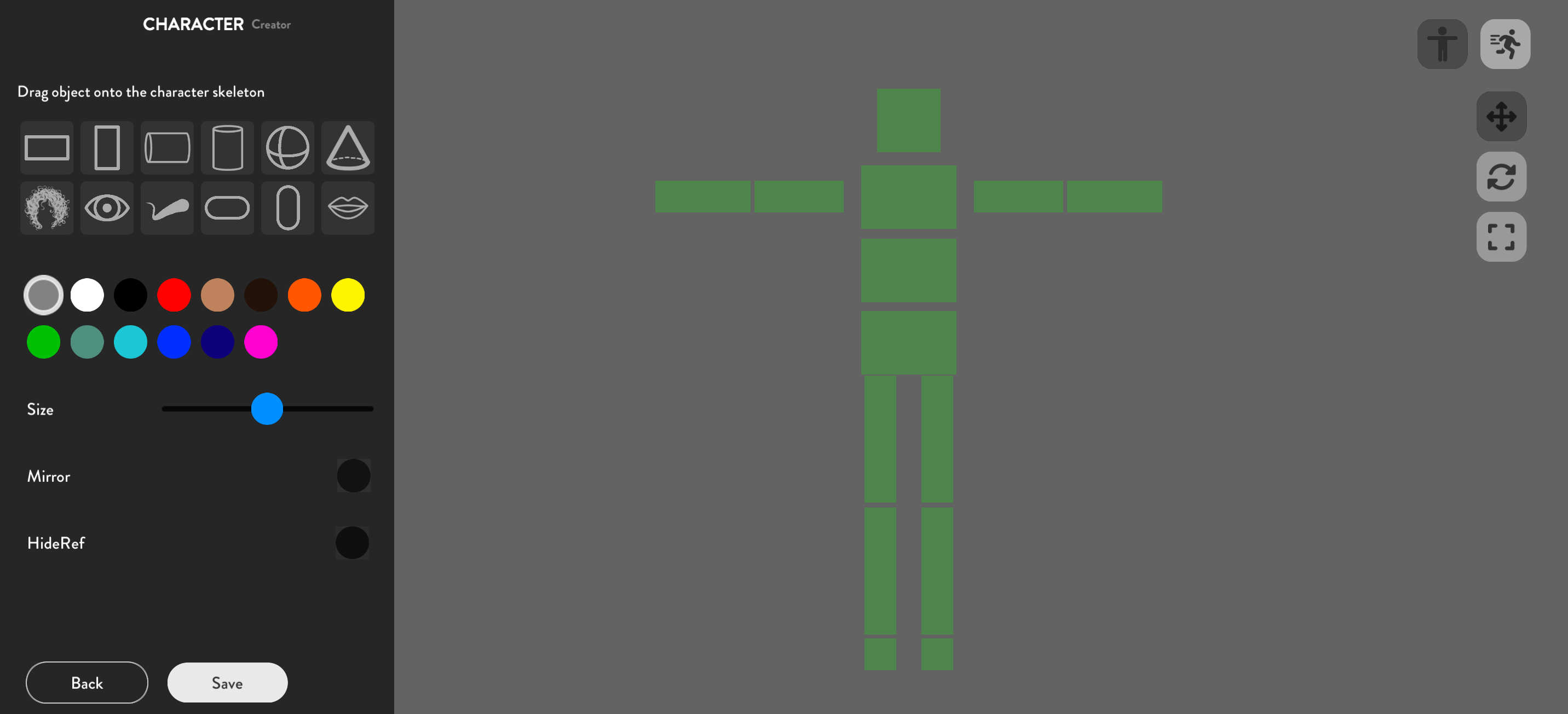
How to Create Your First Custom Avatar

Creating a unique character is the first step in storytelling. In MJOC2, you don't just pick a character; you build one.

Step 1: Choose the Base

Open the app and click on "Character Creator". Select Male or Female to start. You can adjust the skin tone slider to find the perfect match.

Step 2: Face Customization

Use the "Selfie" feature to generate a 3D face from your own photo, or manually sculpt the jaw, nose, and eyes. This is crucial for making your character look unique.

Step 3: Clothing and Accessories

Don't forget to dress up! Navigate to the wardrobe tab to pick casual wear, formal suits, or funny costumes. Remember to save your character before exiting.
Mastering Face Cam: Tips for Smooth Expressions

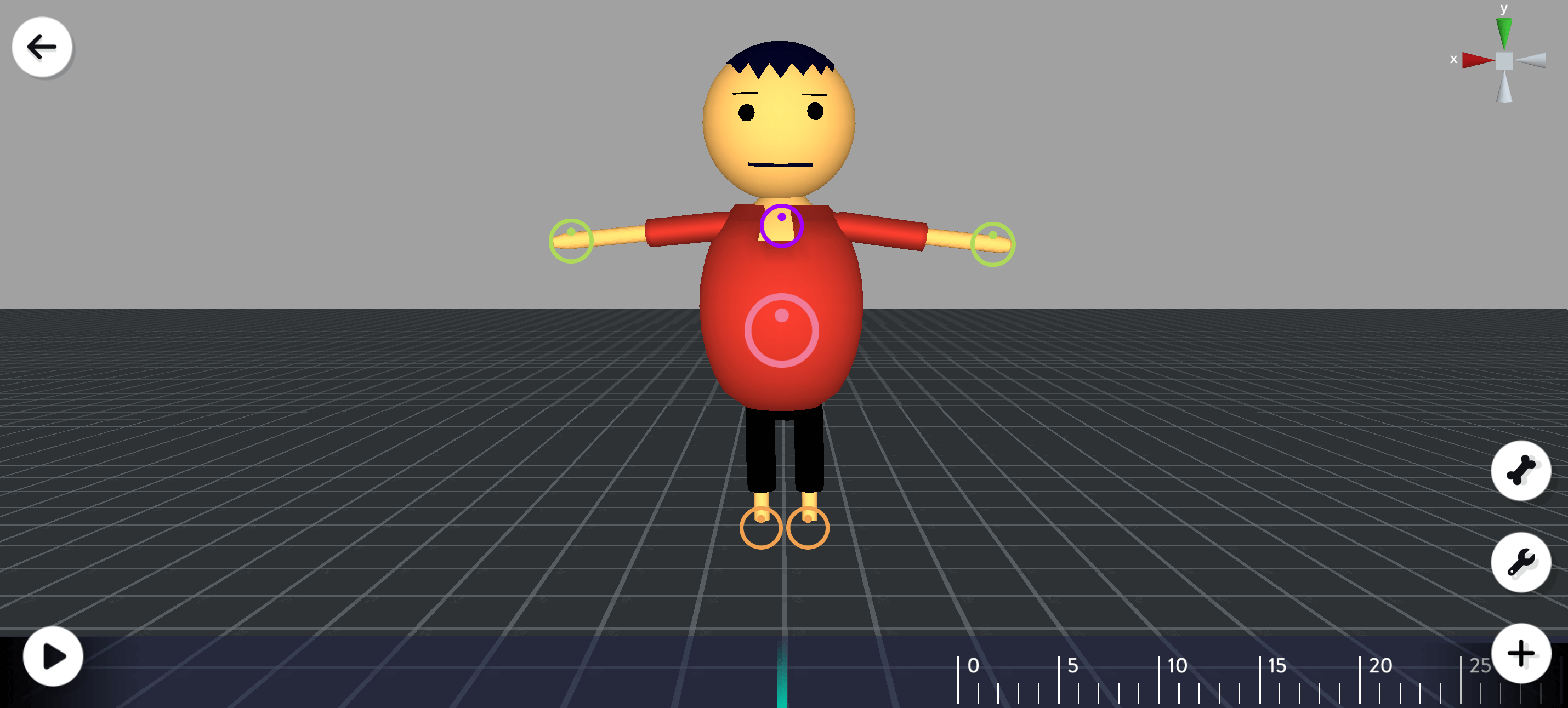
MJOC2 uses your phone's front camera to track your facial movements. Here is how to get the best results.

  • Lighting is Key: Ensure your face is well-lit. Avoid sitting with a bright window behind you.
  • Phone Position: Hold your phone at eye level. Looking down at the camera can cause the avatar's eyes to close partially.
  • Calibrate: Always use the "Reset Position" button if your avatar's head looks crooked.

Voice Acting 101: Recording Dialogues

Great animation needs great sound. MJOC2 offers powerful tools to record and modify your voice directly inside the app.

Recording Your Lines

Tap the microphone icon to start recording. You can record lines character by character. Don't worry if you make a mistake; simply hit the 'Undo' button to try again.

Changing Voice Pitch

Want to sound like a chipmunk or a giant? Use the Pitch Slider after recording.

  • Low Pitch: Good for villains or serious characters.
  • High Pitch: Perfect for kids or funny cartoon voices.

Importing External Audio

If you have pre-recorded audio or funny sound effects (SFX), use the 'Import' button to load MP3 files from your phone directly into the timeline.

Tutorial 1 Image

How to Use the Animation Timeline

The Timeline is where your story comes together. It controls when characters move, talk, or react.

Adding Keyframes

Move the playhead to a specific time, then move your character. The app automatically creates a "Keyframe". This tells the app: "At 5 seconds, the character should be standing here."

Editing Clips

You can tap on any clip in the timeline to:

  • Trim: Shorten the animation.
  • Split: Cut a long clip into two parts.
  • Delete: Remove unwanted movements.

Syncing Audio

Drag your voice clip left or right to match the character's lip movements perfectly. Good lip-sync is the mark of a professional cartoon!

Collaborate with Friends in Multiplayer Mode

Animation is more fun with friends! MJOC2 allows you to connect with other creators to act out scenes together in real-time.

Setting Up a Room

Go to the "Multiplayer" tab and select "Create Room". You can choose a public room (anyone can join) or a private room (password protected).

Assigning Roles

Once your friends join, the host can assign characters. Player 1 can be the Hero, Player 2 can be the Villain. When you hit record, everyone's movements are captured simultaneously!

5 Tips for Writing Funny Scripts

Even the best animation can't save a boring story. Here is how to write scripts that keep your audience laughing.

1. Keep it Short

Mobile viewers have short attention spans. Aim for videos between 60 to 90 seconds. Get to the joke quickly!

2. The Rule of Three

This is a classic comedy structure: Setup, Reinforcement, Punchline.
Example: Character tries to open a door (fail), tries again harder (fail), then realizes it was a "Pull" not "Push" door (Punchline).

3. Use Visual Humor

Don't just say funny things—do funny things. Use the "Slap" or "Fall" animations to enhance the comedy visually.

Troubleshooting: Fix Common Issues

Running into issues? Here are quick fixes for common problems users face while creating animations.

App Crashing on Export?

If the app crashes while saving your video, try lowering the resolution. Go to Settings > Export Quality and switch from 1080p to 720p. This uses less RAM and often solves the crash.

Face Cam Not Working?

Ensure you have granted "Camera Permissions" to MJOC2 in your phone settings. Also, check that your room is well-lit so the AI can detect your face.

No Sound?

Check if your phone is in "Silent Mode". Also, verify that the microphone volume slider inside the app is turned up.